How to Reduce an SKP File Size in SketchUp
Purge Unused drops definitions the model no longer uses. The Width and Height fields on a material only change the tile on the face. Replace the image, Save As, and compare that file. This site does not shrink the model. Up to 100MB is free. The cap is 500MB.
The converter reads the size of the .skp in the folder. It does not purge unused definitions, and it does not shrink a texture. If SketchUp says the file was created in a newer version, the year is the blocker. Use the guide to opening a SKP file. The steps below leave that dialog unchanged.
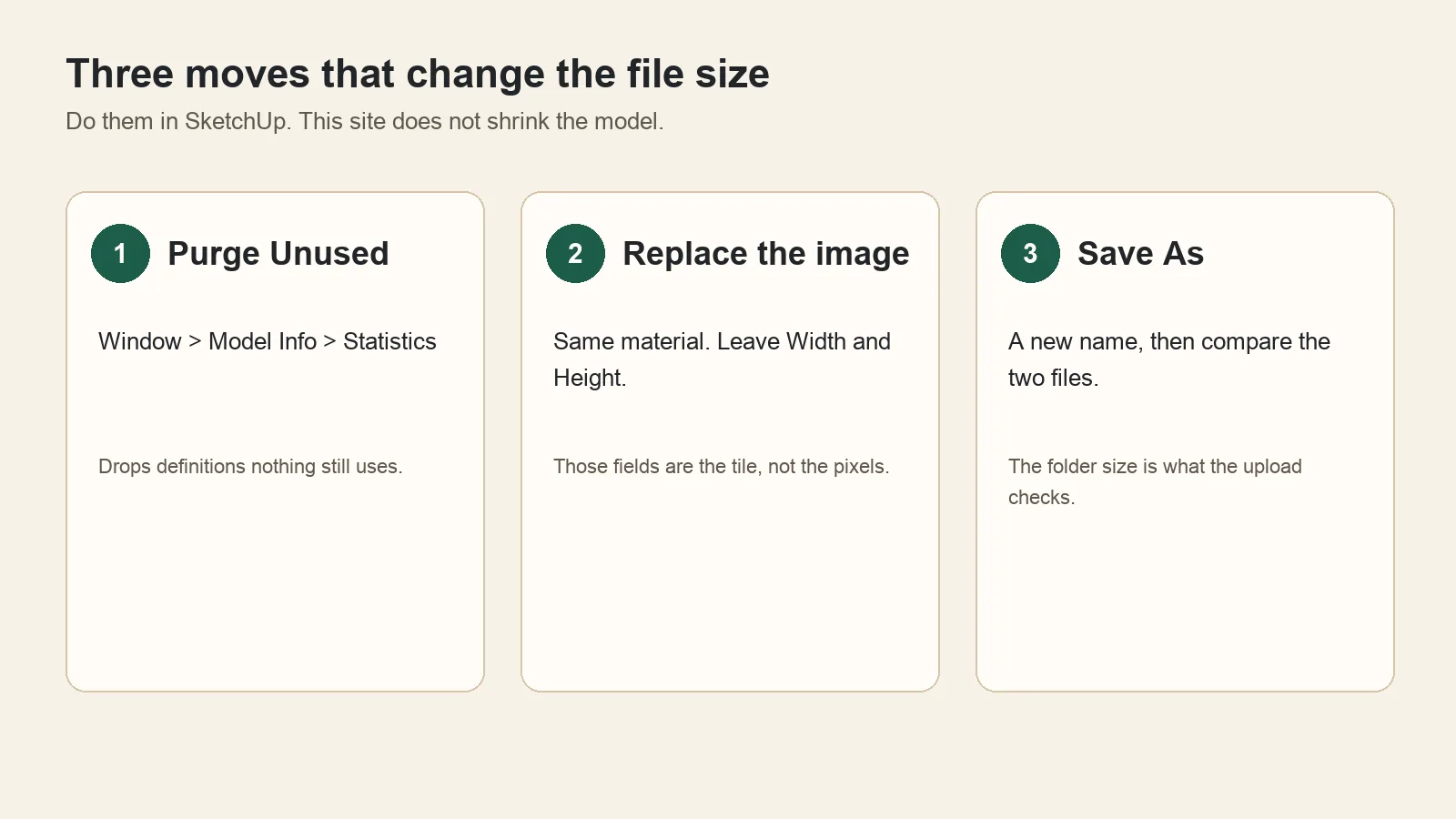
Do these in SketchUp, on a copy. The upload checks the file you save at the end.
SketchUp documents the same first move on its cleanup page for bloated models: Window > Model Info > Statistics > Purge Unused.
Write down the size, then save a second copy
On a Mac, select the file and choose File > Get Info. On Windows, right-click it and open Properties. Write down the size. That byte size is what the upload accepts or refuses. The face count inside SketchUp is a different number.
In SketchUp, choose File > Save As and use a second name, such as house-before.skp. Do the rest of this page on the working file. Leave house-before.skp alone. If a material looks wrong later, reopen that copy.
Purge what the model no longer uses
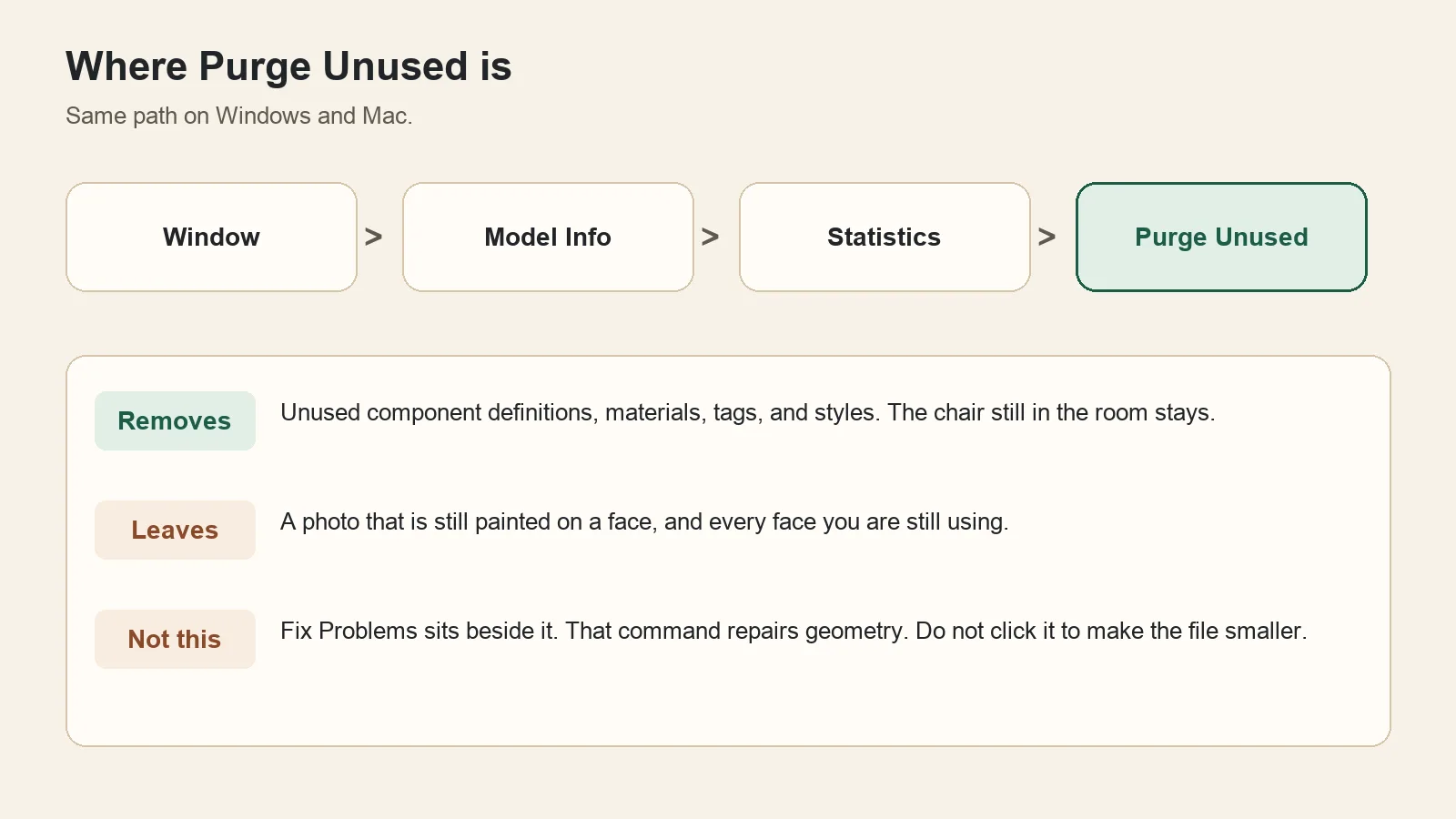
Purge Unused removes stored definitions nothing still uses. It leaves a texture that is still on a face. Fix Problems is the other button.
Click Window, then Model Info, then Statistics, then Purge Unused. Windows and Mac use that path.
The button removes component definitions, materials, tags, and styles that nothing in the model still uses. You can delete a chair from the room and leave its definition in the file. Purge Unused removes that definition. The chair that is still in the room stays.
A photograph painted on a face stays, at its full pixel size. Faces you are still using stay. This button cannot shrink either of those.
Fix Problems sits on the same Statistics panel. It repairs geometry. Leave it alone when the only goal is a smaller file.
SketchUp 2025 and newer also asks, when you save by hand, whether to purge unused entities. That question is this same cleanup. SketchUp 2024 and older, including SketchUp Make 2017, do not ask. Click the button. The question can be turned off under Preferences, on the General tab, so a 2025 install that never asks still needs the button.
Look at the Statistics list again. If the counts barely move, unused definitions were not the weight. The size is in a texture that is still applied, or in faces that are still in the model. Those are the next two sections.
The size in the folder may sit still until Save As. Do that after the image work, not before.
Replace the image. Leave the tile size alone.
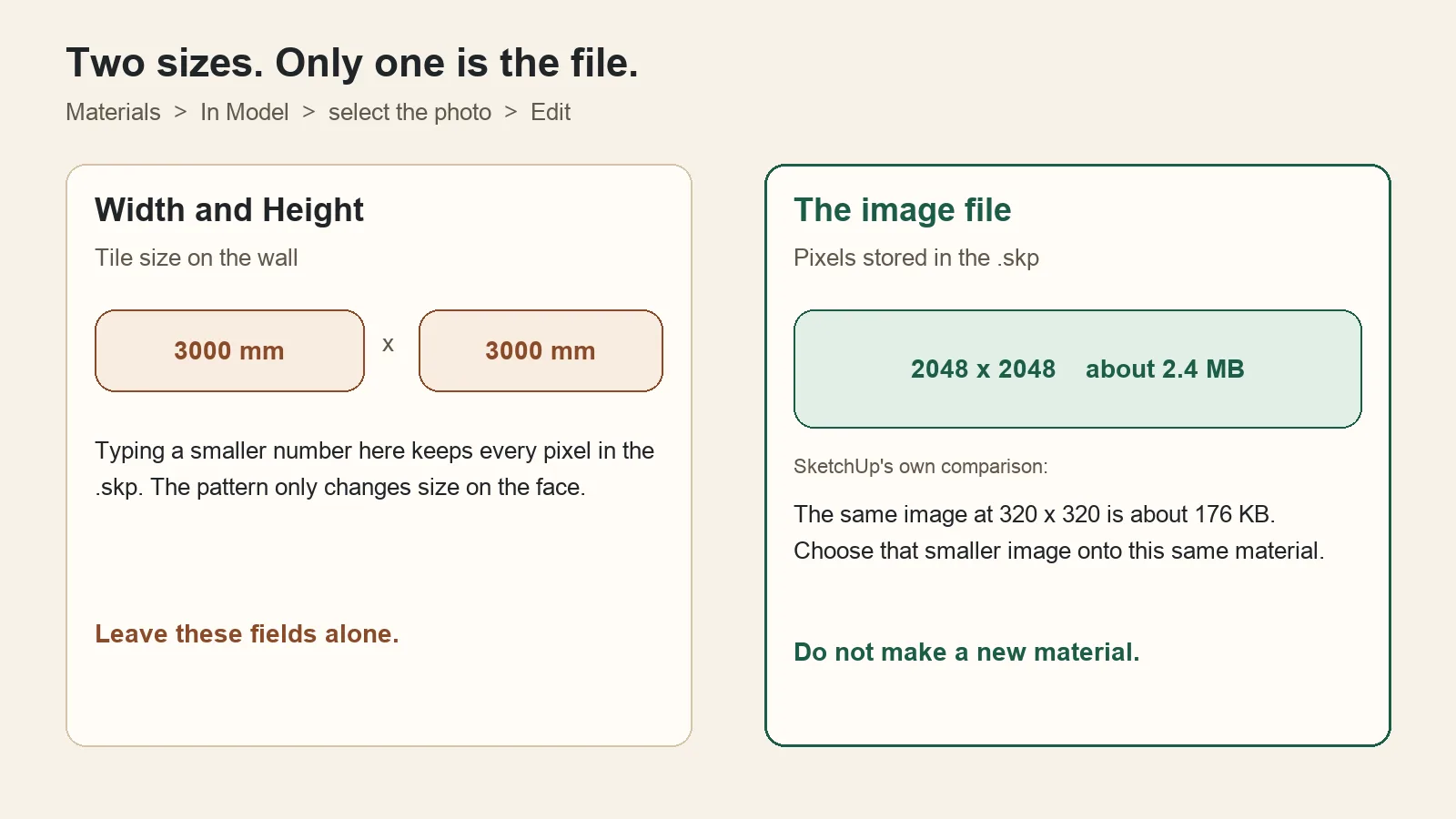
Typing a smaller Width keeps every pixel. The smaller file is a smaller image, loaded onto the same material.
Open Window > Materials. On a Mac, if the panel is named Colors instead of Materials, the Edit controls are in that panel.
On the Select tab, set the collection to In Model. The Edit tab is available only when that material is used in the model. Click a swatch that is a photograph, then open Edit.
Width and Height on that tab are the size of one tile on the face, in the model's units. Typing 500 where the field said 3000 changes the pattern on the wall. It leaves every pixel in the .skp. Leave those two fields alone.
The pixels are the image stored in the material. SketchUp's own material note gives the scale: an image at 2048 by 2048 is about 2.4 MB, and the same image at 320 by 320 is about 176 KB. Those two weights are SketchUp's published comparison, not a measurement of your model. A tile seen from across a room rarely needs 2048 pixels on the long edge. A surface you will inspect up close might.
Swap the image on this same material:
- If you still have the JPG or PNG, make a smaller copy in any image editor. Set the long edge to 1024, or to 2048 when the surface is large. Keep the same shape.
- On this material's Edit tab, choose that file as the texture. Stay on this material. A new material stores a second image, and the file grows.
- If the only copy is inside the model, set an image editor first. On Windows that is Window > Preferences > Applications. On a current Mac it is SketchUp > Settings > Applications. Older Mac versions use SketchUp > Preferences > Applications. From the Edit tab, open the texture in that editor, reduce the image size in pixels, save, and return to SketchUp.
Orbit the model. The tile should cover the same part of the wall, with a softer image. If the pattern suddenly repeats, the new image was placed as a new material, or Width and Height were edited. Reopen house-before.skp.
A photoreal material can store more than the color image. Metalness, Roughness, Normal, and Ambient Occlusion are separate images. Replacing the color image leaves those maps at their old size. If the Edit tab shows those maps and the file is still over the cap, those maps are the next images to replace. Removing one changes the shading. Do that on the working file.
Many faces can share one material, and then the file stores one image. Make Unique on a face or a component stores another copy. Repeated chairs should stay instances of one component.
Delete hidden leftovers, then purge again
Turn on View > Hidden Geometry. Also turn on View > Hidden Objects. They are separate switches. Delete faces, edges, and imported CAD lines you do not need. Then use Edit > Delete Guides.
In the Outliner, delete components that were imported as reference and never placed in the model you are sending. A 3D Warehouse tree, car, or person is often heavier than the building. That model's listing shows its file size and edge count before you download a lighter one. If the receiver does not need the object, delete it.
Click Purge Unused again. Deleting an object can leave its definition behind. The second click removes those.
Read the face count if the size barely moved
Window > Model Info > Statistics lists edges and faces. Purge Unused does not delete a face that is still in the model. A terrain, a detailed tree you kept, or 3D text in a complicated font can be almost the whole file.
On a circle or an arc you can still edit, Entity Info shows Segments. Fewer segments means fewer faces, and it changes the curve. Do that on the working file.
If one part of the model is the weight, copy that part into a second SketchUp file and delete it from the file you need to send. This site does not split a model for you.
Save As, then compare the two files
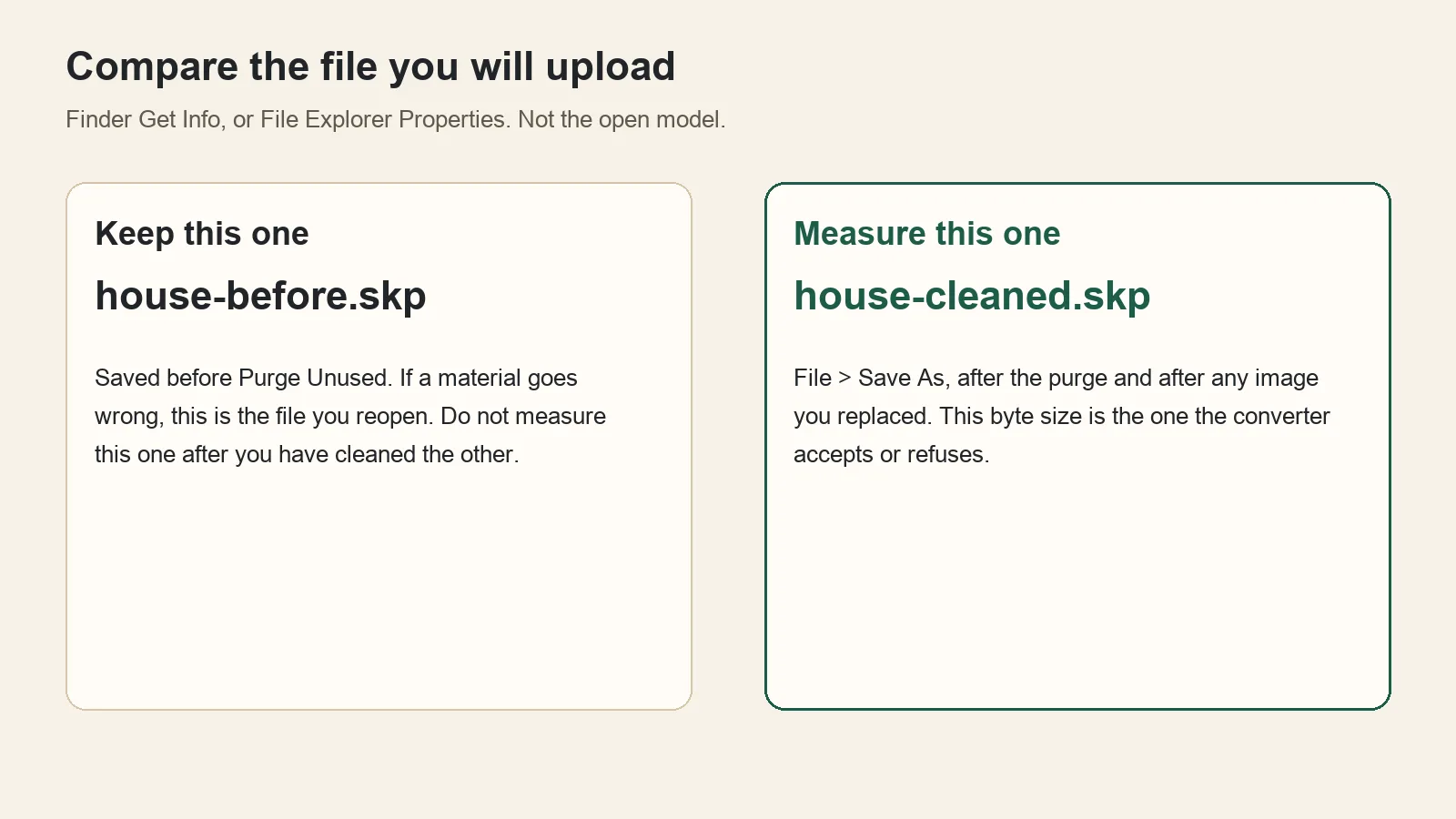
Get Info or Properties on the Save As file. The open model does not show the byte size the converter checks.
Choose File > Save As and a new name, such as house-cleaned.skp. In Finder or File Explorer, compare it with house-before.skp. Upload house-cleaned.skp when that size is the one you meant to send.
A smaller file can still be the wrong year
Cleanup does not change the SketchUp year stored in the file. When the other computer says the file is too new, check which SketchUp year saved it. The check reads the header in the browser and does not upload the model.
Then save a copy for that older SketchUp with the online downgrade tool. Match About SketchUp on the computer that has to open the file. SketchUp Make 2017 reads header 17.0.1, so use the SketchUp 2024 to 2017 page when that is the installed release. Other years are on the year conversion pages. A year older than the installed one can leave out scenes and materials that the installed year can still store.
The first file up to 100MB does not need an account. Signing in adds one more file that day, still up to 100MB.
Still over 100MB
The converter still does not shrink the file on the way through. Over 100MB, and at or under 500MB, the conversion pricing is $2.99 once for that one model, with no renewal, or Pro at $5.99 a month or $39 a year while the subscription renews. The download is another .skp, about the size you uploaded, saved for the year you pick.
Above 500MB the upload is refused. The cleaned file has to be within that cap before this site can take it.
SKPDowngrade is not affiliated with Trimble Inc. SketchUp is a trademark of Trimble Inc., used here only to describe file compatibility.