How to Open a SKP File: The 2026 Troubleshooting & Universal Compatibility Guide
Cannot open a .skp file? Whether you lack desktop SketchUp, face 'created in a newer version' pop-ups, suffer Lumion/Enscape crashes, face macOS/Windows system hurdles, or need to restore from .skb backups, here is the complete troubleshooting guide.
Across architectural engineering, interior visualization, millwork fabrication, and BIM coordination, the .skp format (native SketchUp 3D model) is one of the most frequently exchanged digital assets worldwide.
However, design practitioners, project managers, visualization artists, and site contractors constantly encounter opening hurdles. Typical symptoms include:
- Double-clicking a model prompts the dreaded error: "This file was created in a newer version of SketchUp and cannot be opened";
- The computer lacks desktop 3D modeling software, displaying "Unknown file type" or no response;
- Dragging the asset directly into Lumion, D5 Render, or Enscape triggers an immediate crash to desktop or reports "Import Failed / Model File Empty";
- The file extension says
.skb, or cloud file sync truncated the transfer.
Whether a .skp file opens reliably depends on compatibility between the file's saved internal container version and the opening software installed on your workstation. Before hunting for third-party installers, editing system registries, or purchasing expensive software seats for temporary viewing, follow this structured troubleshooting workflow.
Disclaimer & Trademark Notice: SKPDowngrade operates independently and is not affiliated with Trimble Inc. SketchUp is a registered trademark of Trimble Inc.
Quick Troubleshooting Decision Matrix
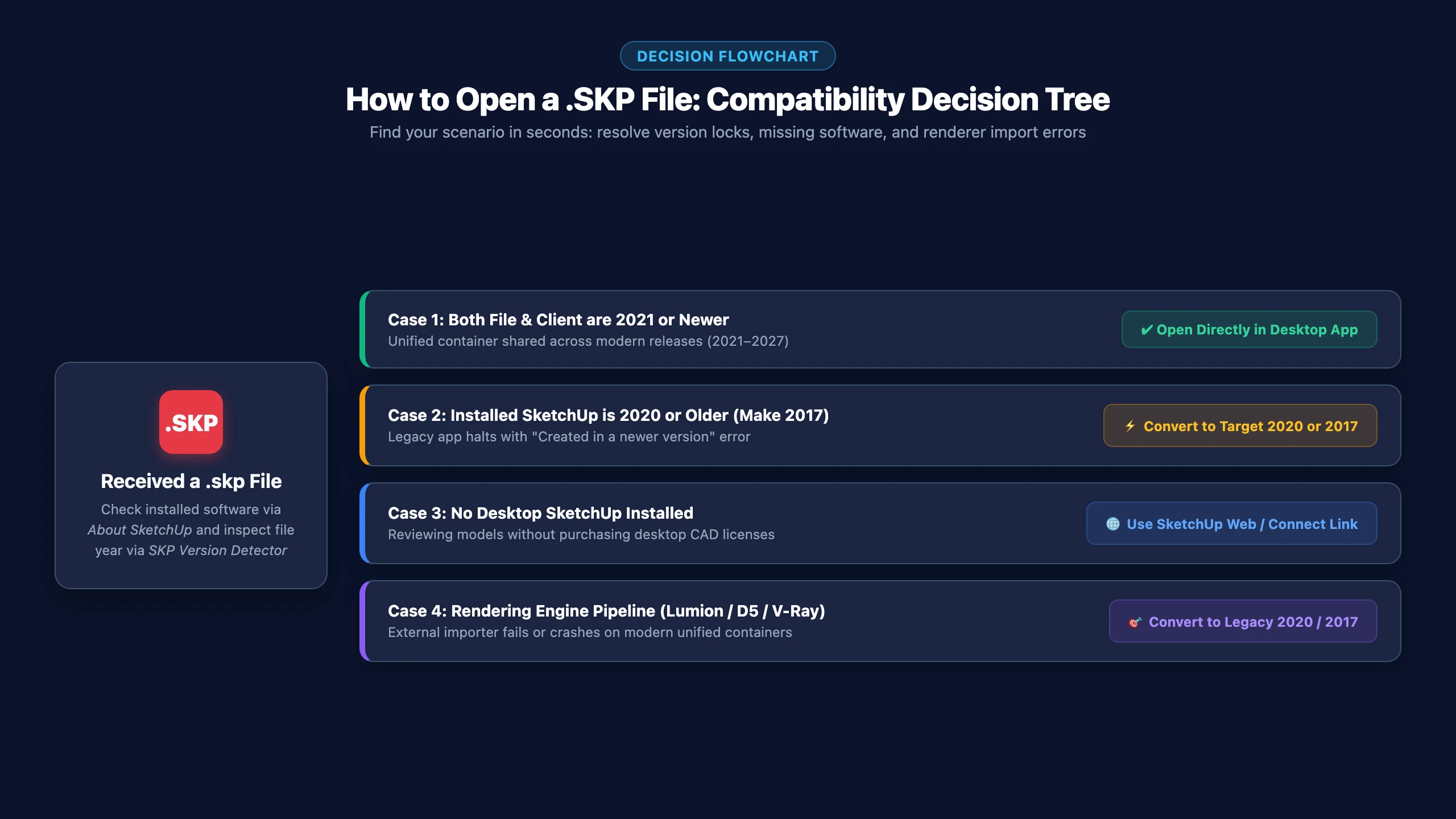
Identify your specific scenario in the table below to locate the recommended path:
| Scenario | Typical Symptoms or System Messages | Root Technical Cause | Recommended Action Path |
|---|---|---|---|
| Older SketchUp desktop installed | Dialog: "This file was created in a newer version" | Installed client is older than file year; lacks modern container decoders | 1. Identify year ➔ 2. Convert to 2020 or 2017 schema ➔ 3. Open smoothly |
| No desktop SketchUp installed | Double-clicking yields no response or prompts generic viewer | Workstation lacks native CAD/BIM graphics viewport engine | Use free SketchUp for Web, Trimble Connect link, or convert for third-party CAD |
| Lumion / D5 / Renderer crashes on import | "Import Failed", empty scene, or distorted UV textures | External renderer mesh parser lags behind modern container schema | Downgrade asset to proven, battle-tested SketchUp 2020 or 2017 format |
| macOS Apple Silicon quirks | Application crashes or Rosetta emulation halts | Architecture shifts (M-series vs Intel x86) and macOS sandbox flags | Use native 2022+ builds, convert file to 2020, or remove quarantine attributes |
| Extension is .skb or truncated transfer | Blank file icon; header inspection reports no SketchUp signature | File is an auto-backup or was cut off during network/cloud sync | Rename .skb to .skp, or verify byte size and re-download full file |
1. You Have SketchUp Installed but Receive "Created in a Newer Version"
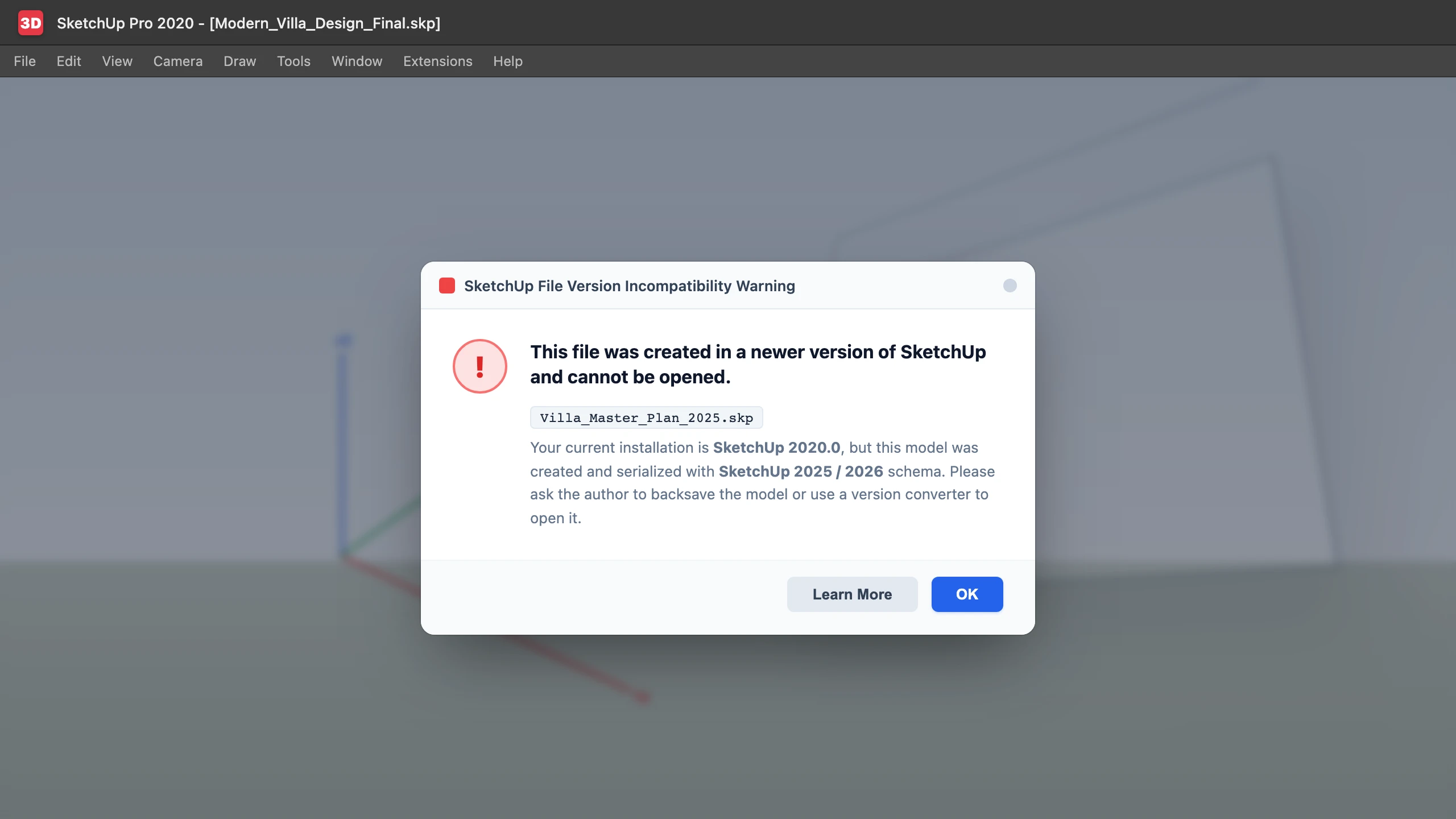
This is the most common roadblock during project handoffs. Many practitioners attempt "Run as Administrator" or edit Windows registry associations, but these actions cannot resolve the issue—older SketchUp desktop applications fundamentally lack the codebase required to parse newer container schemas.
Follow these three structured steps:
Step 1: Verify Your Installed Desktop Version
Do not rely on desktop shortcut labels; check the true internal build:
- Windows: Open desktop SketchUp and select
Help > About SketchUp; - macOS: Click the application menu
SketchUp > About SketchUp. The primary year displayed (e.g., 2017, 2019, 2020, 2022, 2024) indicates your installed software generation.
Step 2: Read the File's True Internal Year (Client-Side Inspection)
Because Windows File Explorer and macOS Finder completely conceal internal SketchUp build signatures in file properties, guessing often leads to incorrect conversion targets.
- Open the free Online SKP Version Detector;
- Drop your
.skpfile directly into the upload area; - What it reads: It inspects only the first 512 header bytes in the browser. The model geometry is not uploaded;
- The detector immediately returns the release year (e.g., 2025) and exact build number (e.g.,
25.0.575).
Step 3: Match Against Version Compatibility Rules
Compare your installed software against the inspected file year:
- Branch A: Both installed software and file are 2021 or newer (e.g., 2022 client, 2025 file): Trimble introduced a versionless unified container schema in 2021. Generally, files saved in 2021–2027 cross-open, automatically skipping newer unsupported attributes (accompanied by a soft compatibility warning). This notice is normal and does not mean the file is broken. If local software still halts or crashes, legacy rendering plugins are likely intercepting data; convert to target 2020 to produce a stable bridge.
- Branch B: Your installed software is 2020 or older (e.g., Make 2017, 2018, 2019, 2020) and the file is newer:
Legacy installations lack modern container decoders and will always reject newer files. You must rewrite the file schema into the explicit legacy header required by your desktop install:
- If using SketchUp Make 2017 (Trimble's final free perpetual desktop release): Use the SketchUp to 2017 conversion pipeline to produce an explicit
{17.0.1}file; - If using SketchUp 2020: Use the SketchUp to 2020 conversion pipeline to generate an explicit
{20.0.1}file.
- If using SketchUp Make 2017 (Trimble's final free perpetual desktop release): Use the SketchUp to 2017 conversion pipeline to produce an explicit
- Branch C: The file is 2017 or older (such as SketchUp 8 or SketchUp 6): All modern releases and SketchUp Make 2017 open legacy files natively without conversion.
2. No Desktop SketchUp Installed on Your Computer
If you are a client, project manager, estimator, or site supervisor without CAD workstations, several official and industry-standard viewing options exist:
1. SketchUp for Web (Free Browser-Based Inspection)
Trimble provides an in-browser WebAssembly 3D viewer:
- Navigate to SketchUp for Web (app.sketchup.com);
- Create or sign in with a free Trimble Identity account;
- Upload and open your
.skpfile; - Capabilities: Rotate, pan, toggle perspective/orthographic projections, measure distances, and review preset presentation scenes.
2. Request a Trimble Connect Sharing Link
If reviewing assets from an external design team, request a cloud sharing link:
- The author generates a review link from desktop SketchUp via
File > Trimble Connect > Share Link; - Recipients view and measure the 3D asset through any modern browser on Windows, macOS, iPad, or Chromebook without installing software.
3. Discontinuation of Standalone "Desktop Viewers"
Many older guides advise downloading the standalone "SketchUp Viewer for Desktop." Please note: Trimble officially discontinued and retired downloads for the desktop viewer on April 22, 2025.
- Legacy copies cannot decode contemporary unified containers, nor parse 2024+ graphics engine attributes;
- Avoid untrusted third-party download portals claiming to provide "portable viewers," as they frequently bundle adware.
3. Third-Party Rendering Suite Import Blockers (Lumion / D5 / Enscape)
In commercial visualization, 3D artists frequently experience import crashes when bringing new SketchUp assets into external rendering suites. This occurs because third-party mesh parsers lag behind Trimble's rapid annual schema updates:
1. Lumion 10, 11, and 12 Troubleshooting
- Symptom: Importing a 2024–2026 model causes Lumion to crash to desktop at 99%, report "Import Failed", or render an empty scene;
- Solution: Lumion's CAD importer is optimized for legacy SketchUp formats. Converting your asset to SketchUp 2020 or 2017 provides rock-solid import stability across studios worldwide.
2. D5 Render & Twinmotion Real-Time Pipelines
- Symptom: Modern assets import with inverted face normals, distorted UV texture scales, or nested tag folders failing to isolate;
- Solution: Target SketchUp 2020. It flattens hierarchical folders into clean single-level tags and preserves diffuse UV mappings, allowing quick batch assignment of PBR materials.
3. V-Ray Distributed Rendering Nodes
- Symptom: Standalone render cluster nodes on frozen system images output bucket render artifacts or missing materials due to minor build discrepancies;
- Solution: Standardize project deliverables on 2020 format prior to dispatching batch render jobs.
4. Operating System-Specific Edge Cases (Windows vs. macOS)
Underlying operating system mechanics can also trigger false opening failures:
1. Windows Long Path Limitations
- Windows limits absolute file paths to 260 characters by default. Storing models inside deep folder trees (e.g.,
D:\Projects\2026_Hospital\Drawings\Revisions\Final\model.skp) can cause SketchUp to fail silently. Fix: Move the file to a shorter directory path (e.g.,C:\CAD\model.skp) before opening.
2. macOS Apple Silicon & Quarantine Flags
- M-Series Native vs. Rosetta: SketchUp 2022+ runs natively on Apple Silicon, while SketchUp 2017 relies on Rosetta 2 translation. If 2017 crashes on macOS Sonoma or Sequoia, use SketchUp 2020 or web-based viewing;
- Quarantine Attributes: Files downloaded from cloud drives or AirDrop may carry quarantine flags preventing lock-file generation. Fix: Move the file out of the Downloads directory onto your local Desktop before launching.
5. How to Generate a Compatible Legacy Copy When "Save As" Lacks Old Years
Starting with SketchUp 2024, Trimble completely removed legacy format selectors from desktop File > Save As. You can no longer save back to 2017 or 2020 within the native application.
Standardized 4-Step Downgrade Procedure:
- Identify Your Target Version:
- If targeting older workstations or academic labs: Select Target 2017;
- If targeting commercial rendering suites or fabrication plugins: Select Target 2020;
- Navigate directly to your required pair on our Version Directory.
- Submit Your Model:
- Drop your
.skpinto the upload zone; - Guests can convert 1 file up to 100MB free; registering adds a daily free pass; files up to 300MB supported on paid passes.
- Drop your
- Confirm Target Year Selection:
- Keep the preselected target;
- Crucial Rule: If the recipient workstation runs SketchUp 2020 or earlier, do not select 2021–2025 (those output the modern unified container). Ensure 2020 or 2017 is chosen.
- Download & Verify:
- Download your file named
filename-su[target].skp(e.g.,Office_Design-su2017.skp); - Test open the file on the recipient workstation before broader distribution.
- Download your file named
Technical Preservation Details:
- Preserved: Core geometric meshes, boundary edges, component hierarchies, definition axes, base diffuse textures (Base Color), UV mapping coordinates, and tag visibilities are maintained;
- Flattened: Because pre-2021 releases do not support nested Tag Folders, folders flatten into clean single-level tags without altering entity assignments;
- Reverted: SketchUp 2024+ Ambient Occlusion viewport styles, PBR roughness/normal maps, and modern vector dashed lines revert to classic display styles supported by legacy software.
6. Still Having Trouble? Data Recovery & Truncation Checks
1. Ensure You Are Launching the Converted File
Designers occasionally re-launch the original desktop file by habit after downloading. Verify the filename carries the -su2017 or -su2020 suffix.
2. Recovering from .skb Auto-Backup Files
If a model becomes corrupted during a crash or power cut:
- SketchUp automatically writes a
.skbbackup in the same directory (e.g.,Project.skb); - Rename the
.skbextension to.skp; - Check it in the SKP Version Detector to verify the header is intact.
3. Checking for Truncated File Transfers
If the detector flags "No SketchUp header found":
- Verify the file size is not 0 KB or significantly smaller than the source;
- Email and chat apps often truncate multi-hundred-megabyte transfers. Request the sender package the file in a
.ziparchive before re-sending.
For deeper technical analysis, read our SketchUp Version Compatibility History or What is a SKP File?.